
For information please visit our Returns Policy
FAQ's
Accessing the Updated Website
additional information for accessing the updated website.pdf
Returns
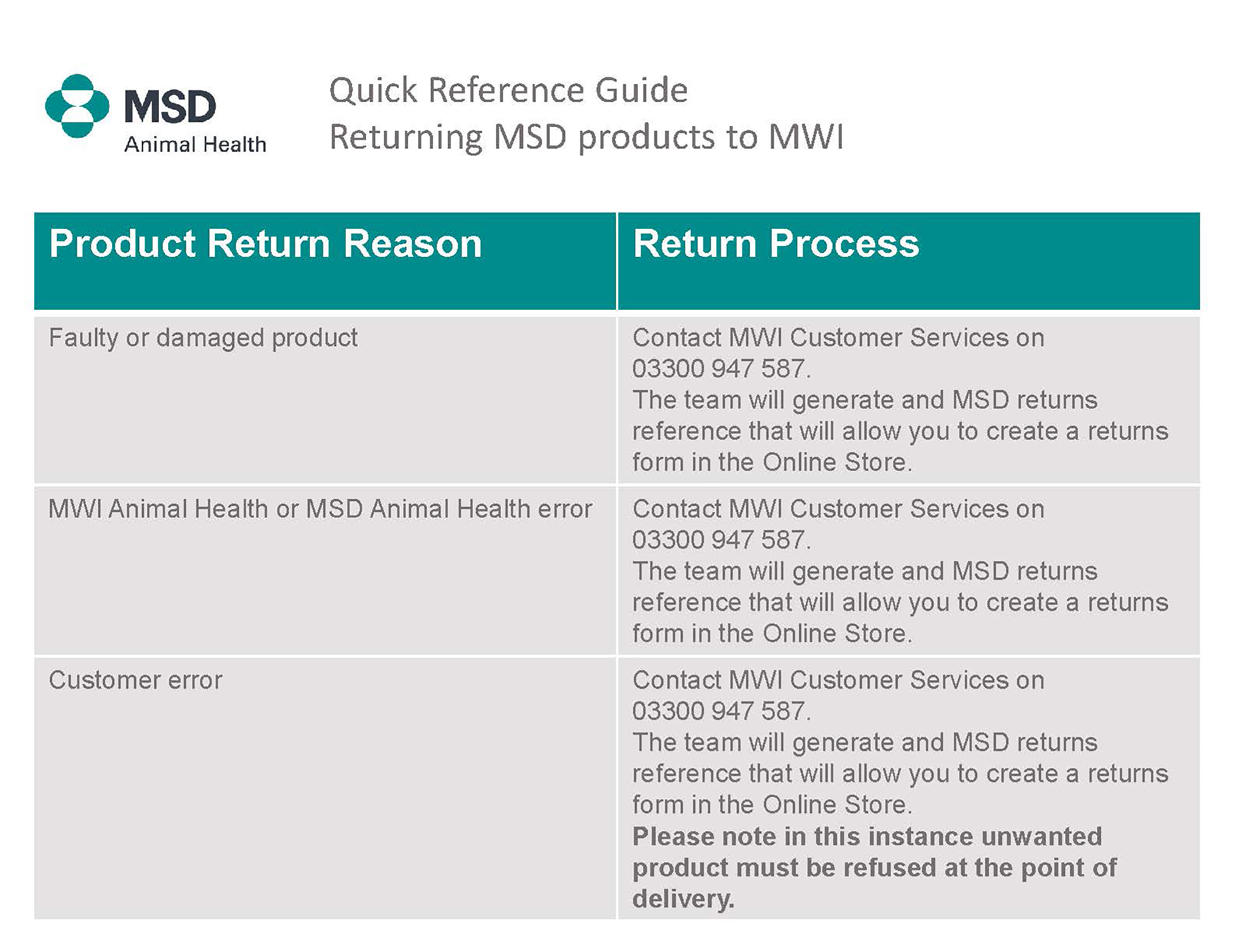
For information on the returns policy and procedure for MSD products, please see the quick reference guide below
& visit the
MSD Returns Policy
If you generate a returns slip but are unable to print immediately, we ask you to save the document to your device. You can then retrieve it when you have access to a printer and print off as you would normally. Our recommendation is to complete a return using a device, ideally a PC, that has access to a printer. This means you can complete the process in one step. If you save the returns slip to the device you can keep a digital copy for your internal records.
If you have created a Returns Form but you have not been able to print it or you did not save it, then we ask that you retrieve and print the Returns confirmation email that will be sent to the email address attached to the user completing the Return.
You can substitute the email for the returns form in this case, making sure it is with the product you return.
Ordering & Product Search
If you have searched for a product on the Online Store and not been able to find it then do call our Customer Services Team on 0330 947 587. We know that there are products that customers need to order infrequently which we do not stock, so we will continue to ensure we can meet these requests.
The Online Store is fully responsive which means that it can be viewed on any device. There is no compromise or restricted features so you will find it easier to use. You can access your location lists, search products, view the catalogue, create returns and view your order history.
We have made it so simple to use that you will be able to access your location lists on a tablet or mobile and physically walk around practice locations to place orders on the go.
If you currently rent an iPod from us, contact your BDM who can help you as we transition across to the new Online Store.
Order by Location list makes placing orders simple for many practices. All lists maintained in myCentaur are migrated across so you can continue using them immediately.
Build lists by areas in your practice by creating and naming a list, then adding products kept in that location. You can set maximum quantities so users know how much to order.
With the Online Store available on all devices, it’s easy to take a mobile or tablet around and order as you walk.
User permissions restrict practice users to adding only products that are in a location list. Users may view all products, but “add to basket” is only available if the product is in a location list.
The Online Store displays the product price when searching or ordering. Prices exclude VAT, batch trace and deductions.
User Management
Email is required for secure login, password resets, and order/return confirmations. While technically it does not have to be unique, we strongly recommend using unique addresses for security.
Call Customer Services on 03300 947 587 or email [email protected] and they can add the required accounts.
Admins can enable “unrestricted invoices & returns” to give users access to invoice history and returns.
Contact Customer Services on 03300 947 587 or email [email protected].
Reports previously available via myReports are now provided through your Business Development Manager.
MWIAH is developing new reporting tools with customer input.